Efficient shipping management is something every WooCommerce store needs. Your customers will be expecting accurate shipping fees, fast shipping, and real-time shipping updates. If you are still doing the shipping manually or calculating the shipping charges of DHL, then you are wasting your precious time and making yourself prone to mistakes.
Through the WooCommerce DHL Shipping plugin, you can automate your whole shipping procedure through real-time DHL shipping rates, print out labels, generate customs documents, and the capability of sharing your shipping information directly through your WooCommerce panel.
In this Blog, we will walk you through the installation and configuration of WooCommerce DHL Shipping, getting your DHL account set up, and generating real-time shipping rates and label printing.
Why Choose DHL Express for WooCommerce Shipping?
One of the world’s best logistics companies, DHL, is used by many businesses worldwide to transport products domestically and internationally. Integration of DHL into WooCommerce can help you automate your process and increase customer satisfaction.
Some features include:
- Show live DHL shipping rates during checkout
- Generate shipping labels automatically
- Print out customs forms and commercial invoices
- Give customers the ability to track their shipments in real time
- Minimize manual efforts and mistakes in shipping
- Handle domestic and international deliveries
- Increase efficiency with order fulfillment automation
How to Integrate DHL with WooCommerce
This is possible through an integration of DHL and WooCommerce. The WooCommerce DHL Shipping Plugin allows your online store to connect with the API of DHL, which enables you to access live shipping rates, ship labels, customs documentation, and tracking details all from your WooCommerce dashboard.
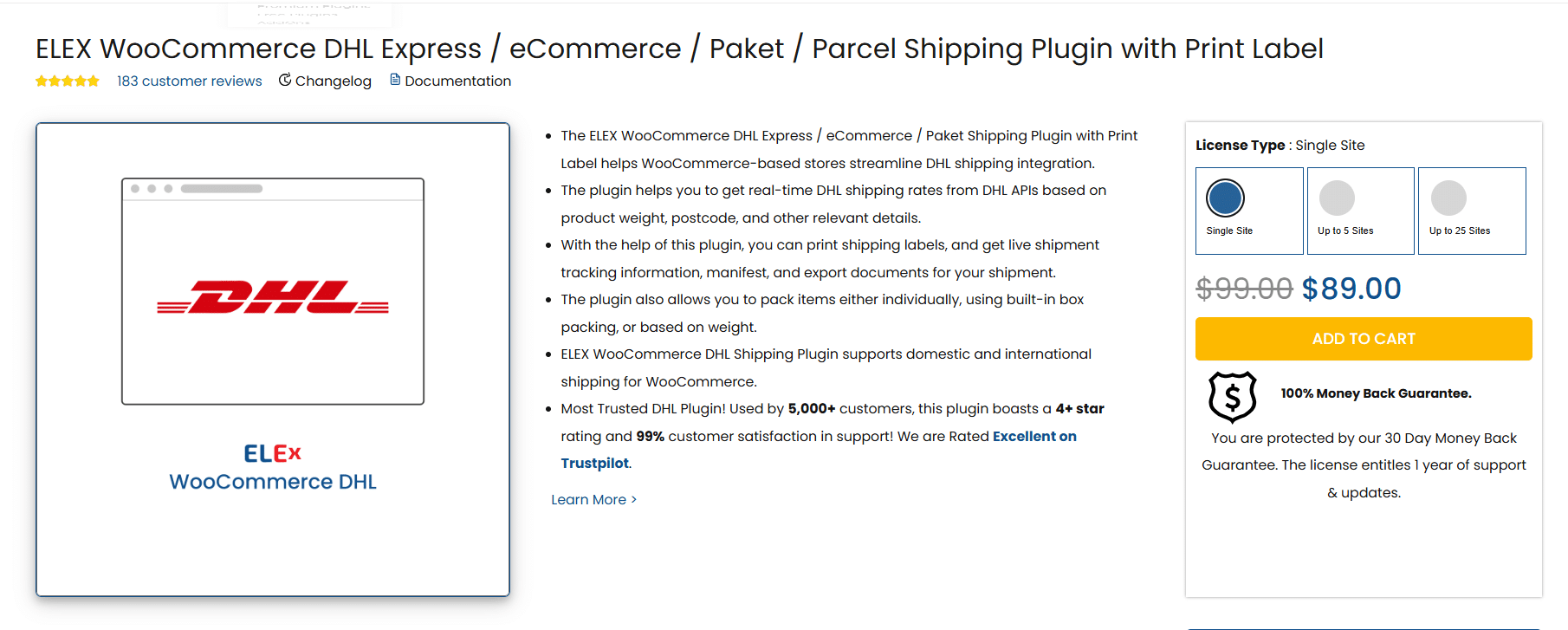
Step 1: Install and Activate the DHL Shipping Plugin
Begin by installing the WooCommerce DHL Shipping plugin on your WordPress website.
After activation, navigate to:
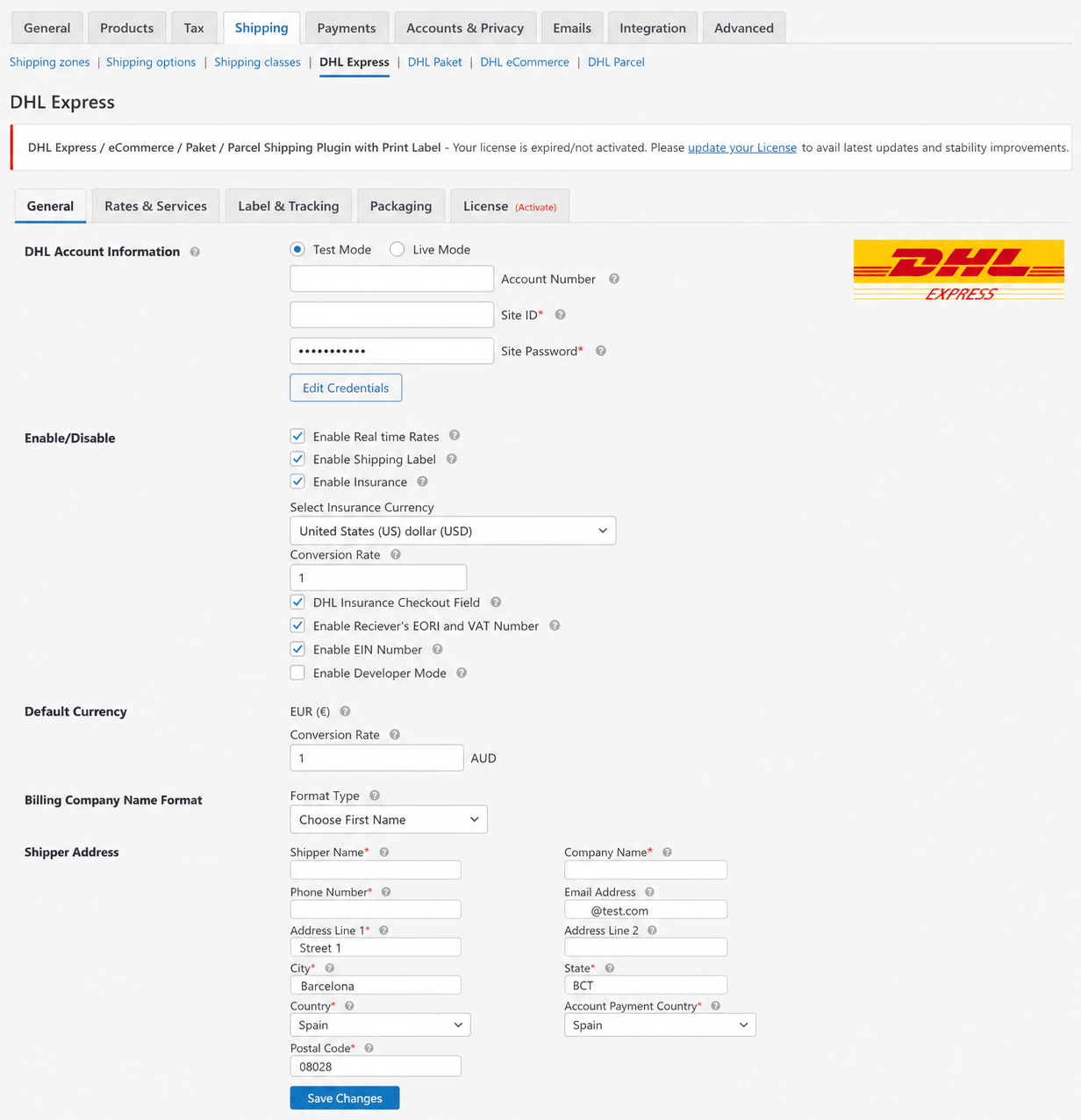
WooCommerce → Settings → Shipping → DHL Express
You can now begin configuring your DHL account.
Tip: Ensure WooCommerce is already installed and your store address, shipping zones, and product weights have been configured before setting up DHL.
Step 2: Connect Your DHL Account
To retrieve live shipping rates and create shipments, you’ll need to connect your DHL account using your API credentials.
Enter the following information:
- DHL API Username
- DHL API Password
- DHL Account Number
- Shipping Origin Address
- Default Currency
- Unit of Measurement (kg/lb)
- Package Units (cm/inches)
Once you’ve entered your credentials, save the settings and test the API connection.
A successful connection enables WooCommerce to communicate directly with DHL servers for rate calculations and shipment creation.
After verifying the credentials, the plugin connects securely to the DHL API. From now on, WooCommerce will be able to get real-time shipping quotes, ship orders, print labels, and track them seamlessly.
Step 3: Enable Live DHL Shipping Rates
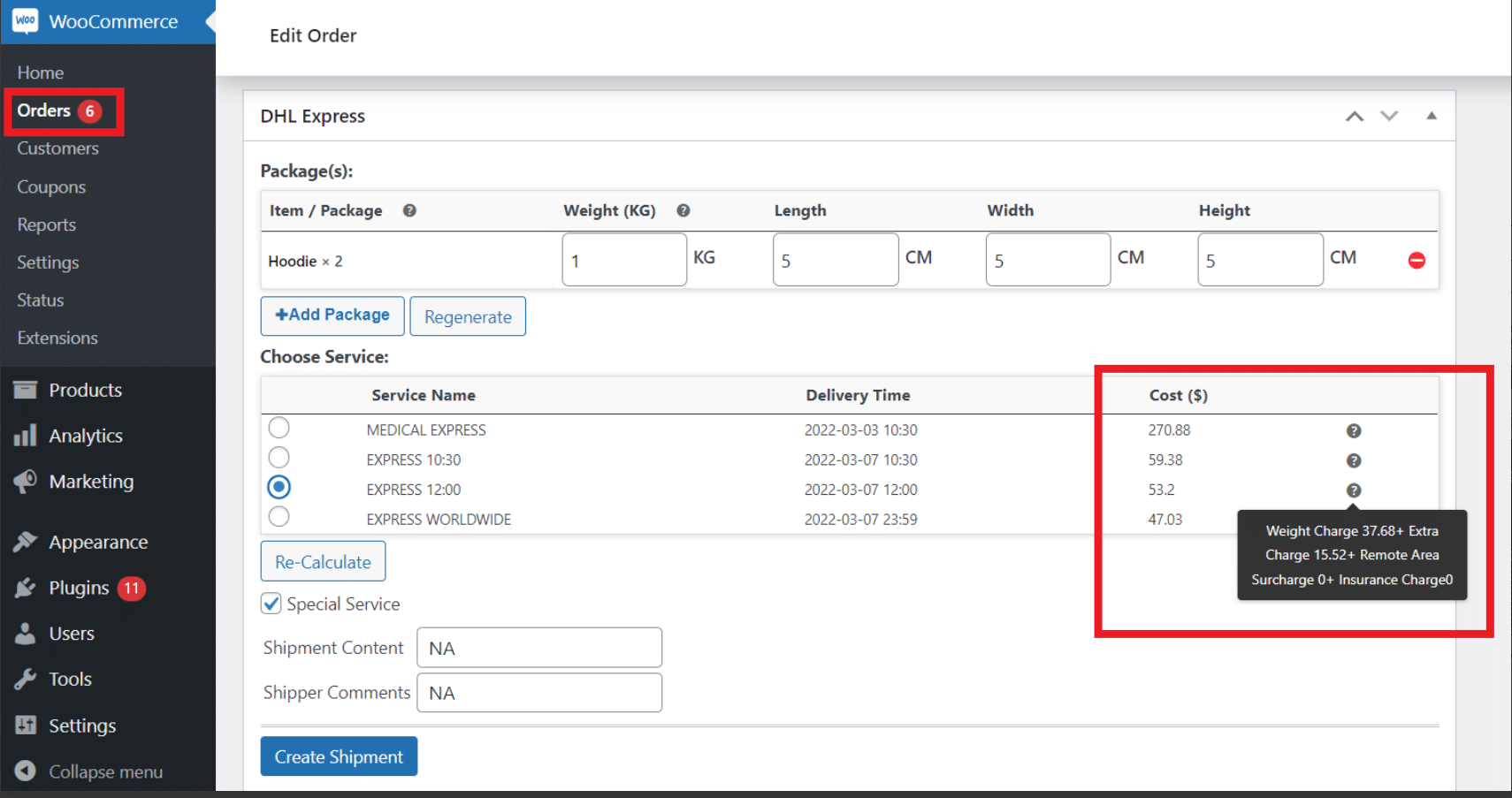
One of the biggest advantages of integrating DHL with WooCommerce is displaying real-time shipping rates.
Instead of charging fixed shipping costs, WooCommerce requests live rates directly from DHL based on:
- Shipping destination
- Package weight
- Package dimensions
- Selected DHL service
- Delivery speed
This ensures customers always see accurate shipping charges during checkout, reducing cart abandonment caused by unexpected shipping costs.
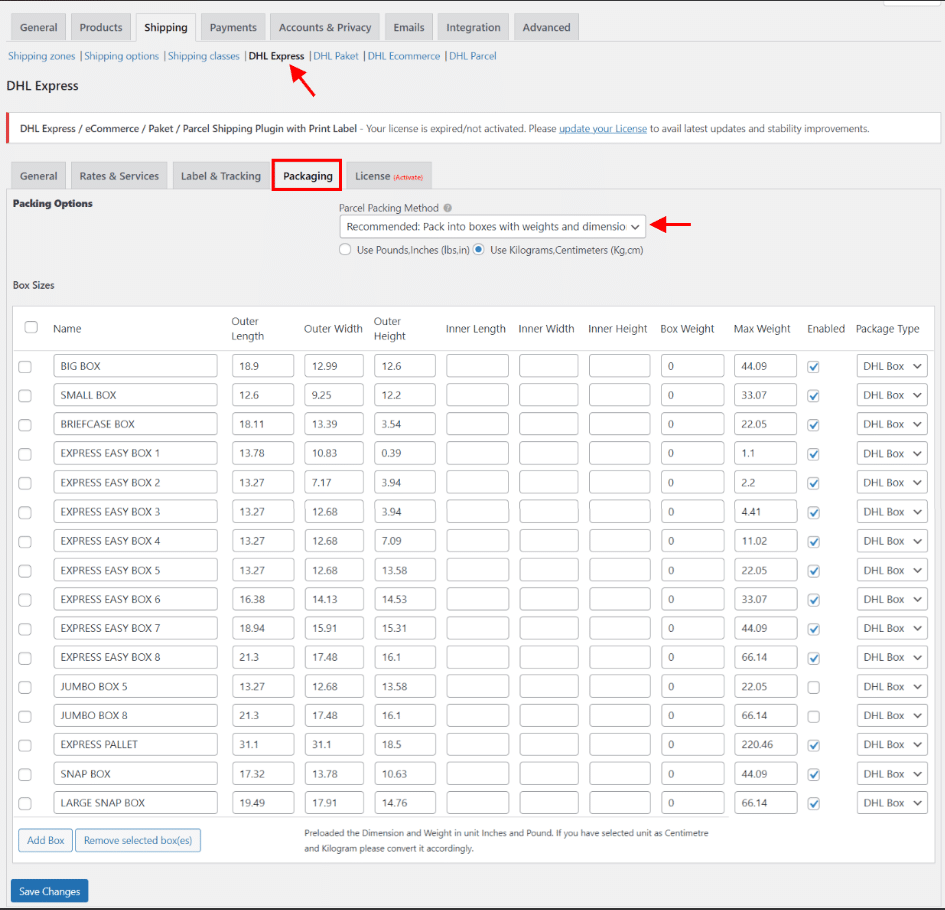
Step 4: Configure Packaging Settings
Accurate package dimensions play an important role in calculating DHL shipping rates.
Within the plugin, you can configure:
- Default package dimensions
- Product weights
- Packing method
- Box sizes
- Maximum package weight
Keeping these values accurate ensures customers receive correct shipping quotes and prevents unexpected carrier surcharges.
For stores shipping products of different sizes, configure multiple box sizes so the plugin can automatically choose the most appropriate packaging option.
Step 5: Generate DHL Shipping Labels
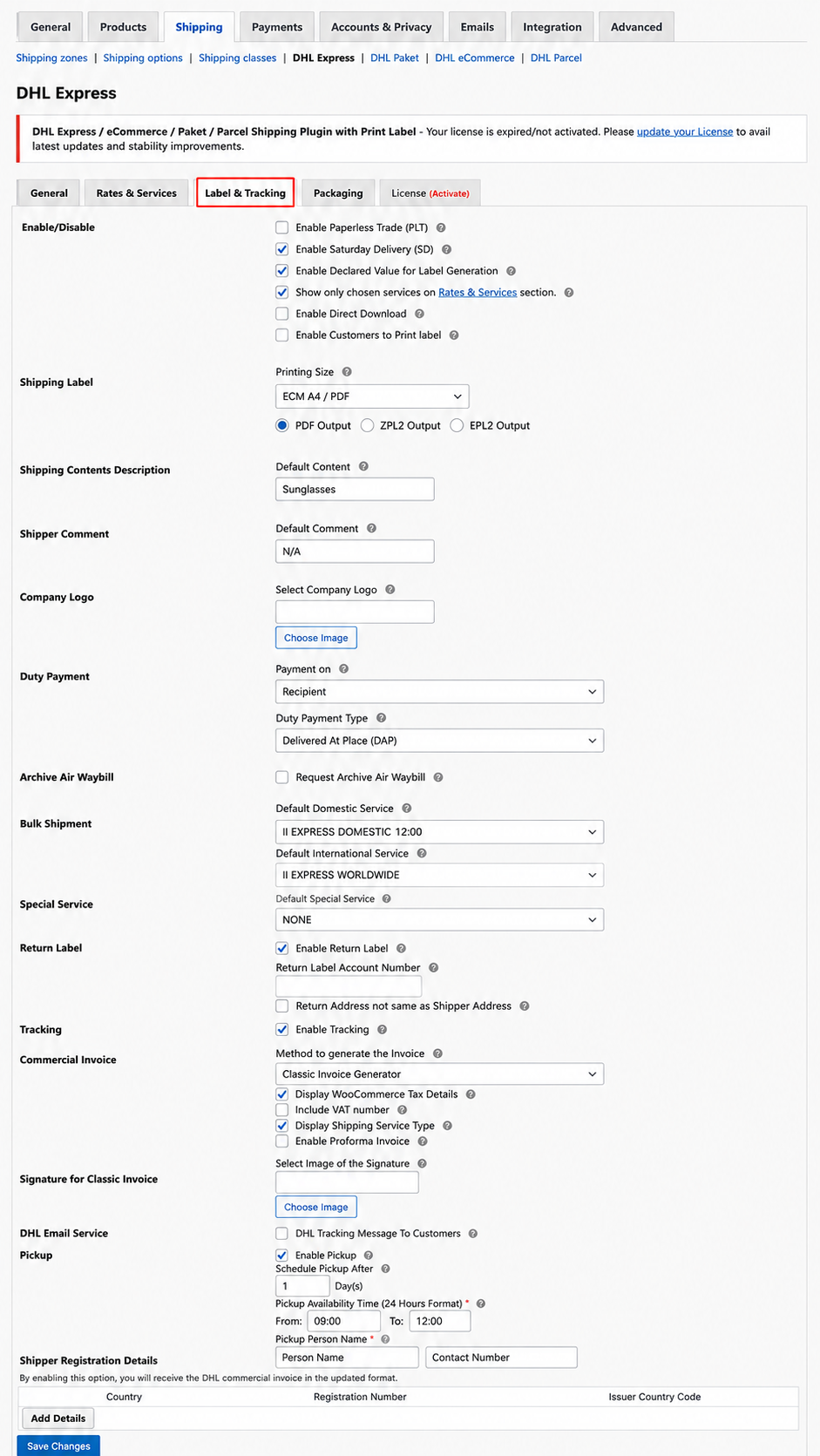
Once an order is received, the plugin allows you to create shipping labels directly from the WooCommerce order page.
With a single click, you can:
- Create the shipment
- Generate a DHL shipping label
- Print the label
- Download it as a PDF
- Generate commercial invoices for international shipments
This eliminates the need to manually create shipments on the DHL website.
Step 6: Print Customs Documents
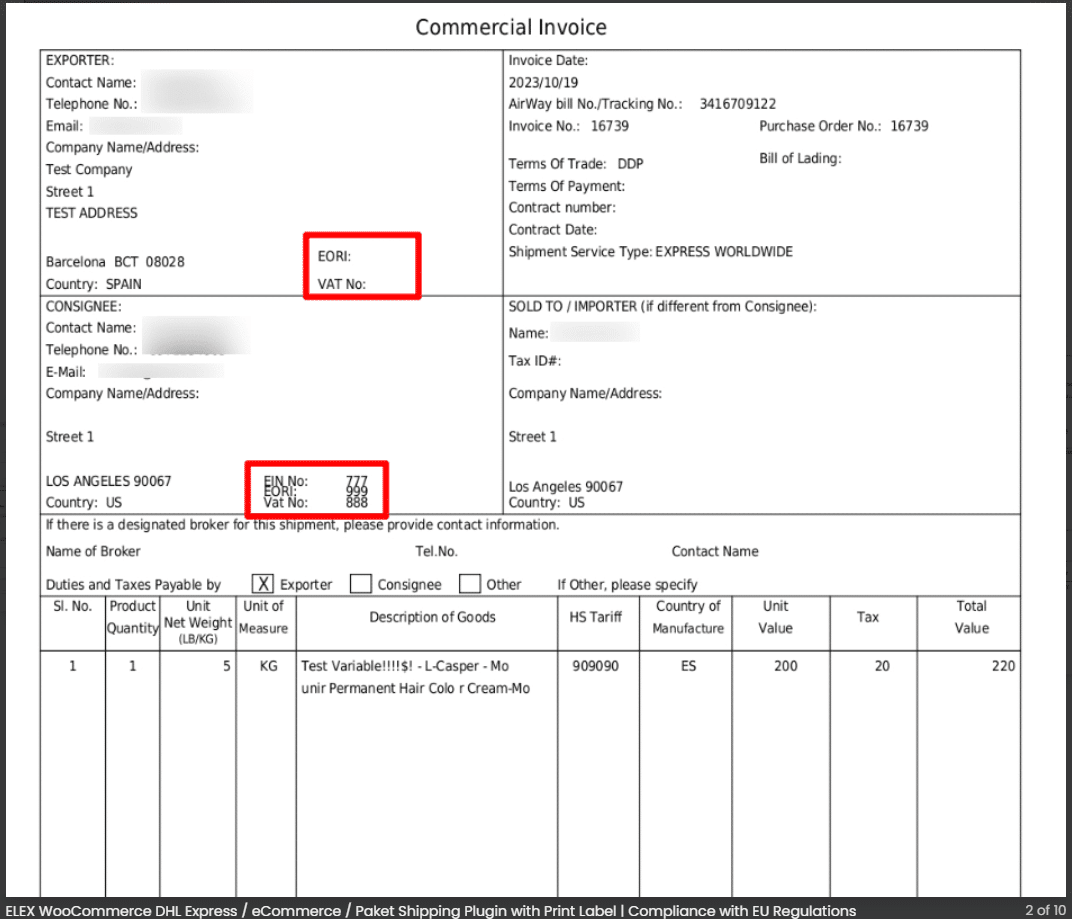
For international shipments, customs documentation is essential.
The plugin automatically generates:
- Commercial invoices
- Customs declarations
- Shipment documentation
This helps reduce customs delays while ensuring compliance with DHL’s international shipping requirements.
Step 7: Enable Shipment Tracking
After creating a shipment, DHL assigns a tracking number automatically.
The plugin can:
- Add tracking numbers to WooCommerce orders
- Send tracking emails to customers
- Display tracking information within customer accounts
- Update shipment status automatically
Providing customers with real-time tracking information improves transparency and reduces customer support requests.
DHL Packaging Best Practices for WooCommerce Stores
Packaging is just as important as choosing a proper carrier for your shipments. The right packaging will reduce damage risks during shipment, allow you to calculate proper shipping costs, and ensure that your parcels meet the requirements of DHL.
In case of international and local delivery, there is always an opportunity for you to adhere to DHL packaging guidelines.
The Importance of Appropriate Packaging: Poor packaging may lead to damage, additional charges, delays, or even rejection of your package. Adherence to some packaging recommendations will help you to make your delivery easier and cheaper.
Choose the Right Packaging Box: The box that you use depends on the size and weight of your packages. Too big a box will make your shipment overweight and raise the cost of shipment, while too small a box will lack proper packaging.
Tip: Accurate information about package weight and dimensions is important in WooCommerce DHL Shipping, as it helps calculate shipping costs and create proper shipping labels.
Recommended Packaging Based on Parcel Weight
| Parcel Weight | Recommended Packaging |
| Up to 5 kg | Single-wall corrugated box |
| 5–15 kg | Strong single or double-wall corrugated box |
| 15–30 kg | Double-wall corrugated box |
| Above 30 kg | Heavy-duty or specialist packaging |
For fragile or high-value items, choose double-wall boxes even if the shipment weighs less than 15 kg.
Select the Right Packing Materials
Choosing appropriate cushioning materials helps protect products from impacts during transportation.
Some commonly used packing materials include:
- Bubble wrap
- Foam inserts
- Air pillows
- Packing peanuts
- Corrugated cardboard dividers
- Kraft paper
For delicate products such as electronics, glassware, or ceramics, wrap each item individually before placing it inside the shipping box.
DHL Packaging Tips
Consider these practices before preparing your shipment:
Choose the Right Size of the Box: Select the right size of the box for your items, as oversized boxes have a greater movement during shipment and can even increase your shipping cost as per dimensional weight.
Provide Adequate Padding to Fragile Items: Provide at least 5–6 centimeters of padding around the items to cushion any shocks while moving and handling the product.
Fill up the Empty Space within the Box: Use the void fillers to stop the product from moving within the packaging.
Package Multiple Items Separately: In case you ship multiple items together, make sure to pack them separately using the cardboard partitions and protective cushioning material.
Pack the Items Using the Box-in-Box Method: If you have expensive or fragile items, use the box-in-box technique by packing the original package in another box with cushioning material.
DHL Services for WooCommerce Businesses
Depending on your DHL account, you can use:
DHL Express – Fast domestic and international deliveries.
DHL eCommerce – Cost-effective shipping for online stores.
DHL Freight – Suitable for oversized commercial shipments.
Most WooCommerce stores primarily use DHL Express or DHL eCommerce.
Common WooCommerce DHL Shipping Issues
Live rates not showing?
- Check API credentials.
- Verify product weights.
- Confirm shipping zones.
Are labels not generating?
- Verify customer address.
- Check package dimensions.
Tracking not updating?
- Wait for DHL processing.
- Verify shipment creation.
Best Practices for WooCommerce DHL Shipping
To get the most from your DHL integration:
- Keep product weights and dimensions up to date.
- Use accurate package sizes to avoid unexpected shipping costs.
- Test live shipping rates after making configuration changes.
- Regularly review enabled DHL services.
- Verify API credentials whenever you update your DHL account.
- Use automated tracking emails to keep customers informed.
- Generate shipping labels directly from WooCommerce to reduce manual work.
- Periodically update your WooCommerce DHL Shipping plugin to access the latest features and compatibility improvements.
Conclusion
By integrating DHL with WooCommerce, you are able to automate one of the tasks that takes up the most time when operating an e-commerce store. Live shipping rates, printing of labels, creation of tracking numbers, and even international shipping become easier through WooCommerce DHL Shipping.
No matter if you have a few orders every day or hundreds of orders daily, automation of the DHL shipping process can save you a lot of time.
The ELEX WooCommerce DHL Shipping Plugin is the right choice for those who need a full-fledged WooCommerce DHL Shipping solution.
Frequently Asked Questions
1. How do I get DHL to work with WooCommerce?
DHL can be integrated with WooCommerce through a plugin, which will then allow you to connect your online store to the DHL API. With this, you will be able to show live shipping rates, create shipping labels, and even ship your orders from your WooCommerce control panel.
2. Does WooCommerce have the ability to show live DHL shipping rates at checkout?
Yes. A WooCommerce DHL Shipping plugin retrieves real-time shipping rates from DHL based on the package weight, dimensions, destination, and selected shipping service, ensuring customers see accurate shipping costs during checkout.
3. Is it possible to print out DHL shipping labels using WooCommerce?
Yes, once you set up the DHL account, you can easily create and print out DHL shipping labels right on the WooCommerce order page without having to make shipments manually on the DHL web site.
4. Is WooCommerce DHL Shipping suitable for international shipments?
Yes, WooCommerce DHL Shipping is able to process not only domestic but also international shipments and prepare necessary customs documents for them.
5. Why use WooCommerce DHL Shipping plugin?
The WooCommerce DHL Shipping plugin performs such shipping-related tasks as calculating rates automatically, preparing shipping labels, tracking orders, and creating custom documents.
Further Reading